
How to Route Your Main iPlum Number to Multiple Phones or Users
iPlum offers three ways to handle calls to your main business number. Choose Shared Line for team collaboration, Phone Tree for menus and extensions, or Call Forwarding to route voice calls to other numbers. These features serve different purposes.
1. Which Option Should You Use?
- Shared Line: Best when multiple employees need to make or receive calls, respond to texts, and access other permitted communications using the same iPlum number.
- Phone Tree & Extensions: Best when callers should hear a greeting and select a department or person, such as “Press 1 for Sales, 2 for Support.”
- Call Forwarding: Best when you only need to ring or forward calls to iPlum or external phone numbers, without sharing text-message histories or other line features.
Note: Phone Tree has its own call-routing rules and takes precedence over simple Call Forwarding when enabled on the same iPlum number. See the Call Forwarding FAQ for details.
2. Shared Line — Recommended for Team Collaboration

With Shared Line, authorized employees can use a shared business number for supported calling, texting, voicemail, contacts and fax. Shared Line works in both the iPlum mobile app and web portal, subject to the services and permissions enabled for each user.
Examples include an assistant answering calls and texts for a practitioner, reception staff covering a main business number, or team members responding to clients while a colleague is away.
How to set up Shared Line
- Create your team account and add the employees who will access the number. Each participating user needs an active iPlum Professional or Enterprise subscription.
- Sign in to my.iplum.com as an administrator.
- Open Dashboard → Users and select the line to share.
- Go to Settings → Share Line → Edit, select users, choose the allowed services and permissions, and save.
For full instructions, see What Is a Shared Line? or Share a Line with Other Users. If you still need to create employee accounts, see Set Up a Multi-User Team Account.
3. Phone Tree — Route Calls with Greetings and Extensions
Use Phone Tree when callers should hear a welcome message and choose an extension. An extension can ring one person, several people at once, or configured destinations in sequence. Phone Tree is primarily for call routing; use Shared Line separately when employees need access to shared texting, voicemail or other services.
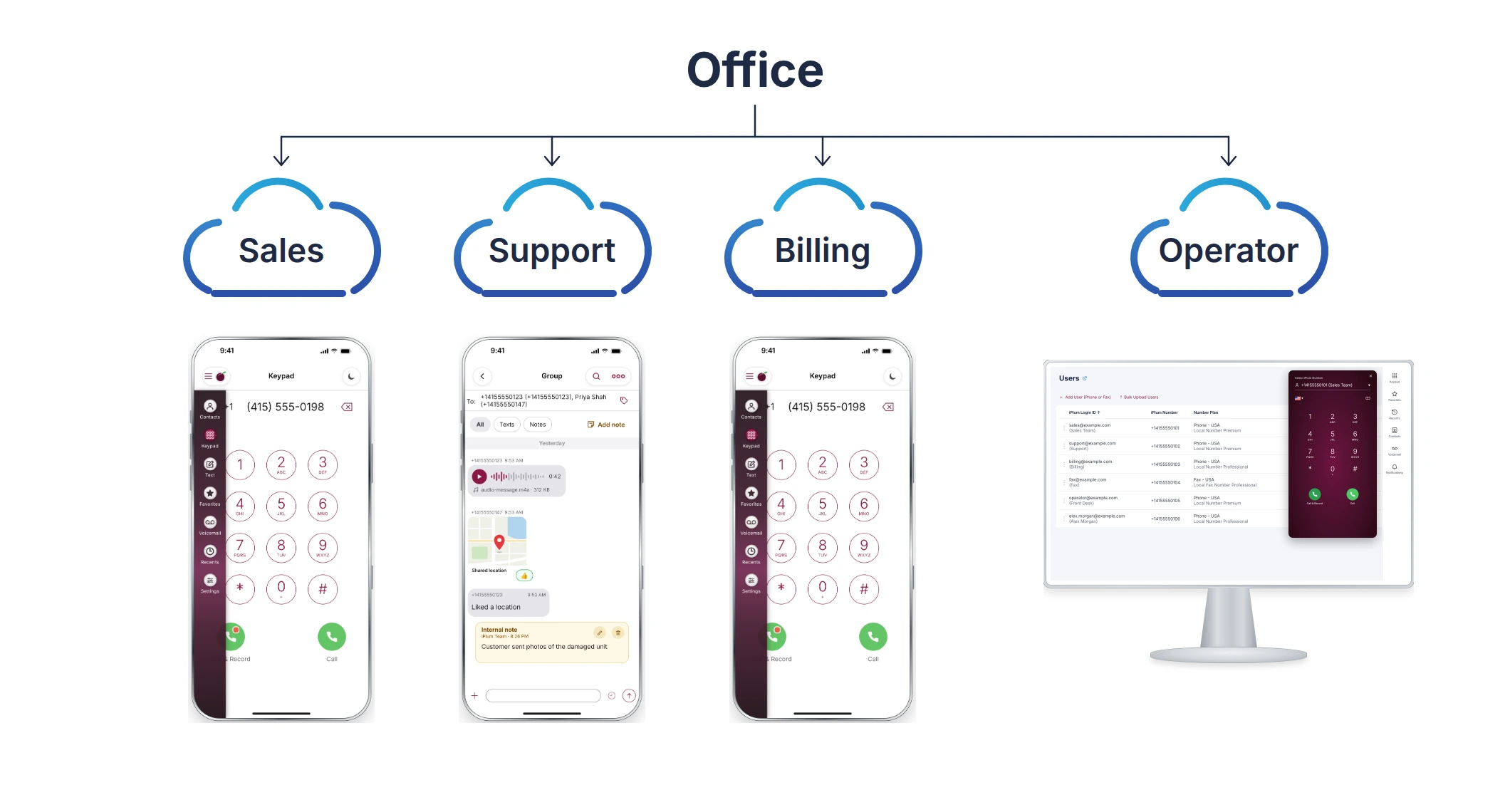
Examples include “Press 1 for Sales, 2 for Support,” or separate extensions for staff members and departments. You can configure greetings, extensions and routing in your iPlum administrator account.
See How to Set Up Phone Tree & Extensions for the detailed steps, examples and available routing options.
4. Call Forwarding — Ring Other Phone Numbers
Call Forwarding sends incoming voice calls to configured iPlum or external destinations. It can ring up to three destinations simultaneously, control what happens if nobody answers and apply forwarding during selected hours.
Call Forwarding does not give forwarded destinations access to shared text messages, contacts, voicemail histories or fax. Use Shared Line if team members need those features.
To configure it, open Dashboard → Users → Select iPlum Line → Settings → Call Forwarding → Edit in the web portal, or use Settings → Call Forwarding in the iPlum app.
For setup details, unanswered-call options, schedules, caller-ID settings and usage information, see How to Set Up Call Forwarding in iPlum.
5. Frequently Asked Questions
Can several employees answer calls to the same business number?
Yes. Shared Line is the recommended option when employees also need to collaborate on shared communications. Phone Tree can separately direct callers to particular employees or departments.
Can Shared Line and Phone Tree serve different needs?
Yes. Shared Line controls which authorized team members can use supported services on a number. Phone Tree determines how callers navigate greetings and extensions.
Do forwarded calls also forward text messages?
No. Simple Call Forwarding routes voice calls only. Shared texting requires Shared Line permissions.
Where do I add employees or set up a team account?
See Multi-User Team Account Setup and Add a New Phone User rather than repeating those steps here.
Related Guides

