
How to Connect & Import Outlook Contacts into iPlum?
iPlum's Outlook Contacts integration lets you connect your Microsoft Outlook account and import your Outlook contacts directly into iPlum Contacts.
In addition to importing contacts, the Outlook integration can automatically synchronize contact changes in the background. You can control which contact fields are imported, how matching contacts are handled, and which Outlook contact changes trigger background synchronization.
How Do I Connect Outlook Contacts to iPlum?
Follow these steps to connect your Outlook account and import your contacts into iPlum.
Step 1: Log in to the iPlum Portal
Log in to your iPlum account and open the iPlum web portal.
Step 2: Open Integrations
From the iPlum portal, go to:
Integrations → Contacts
Select Outlook to begin setting up the integration.
Step 3: Connect Your Microsoft Outlook Account
Select the option to connect Outlook.
You will be redirected to Microsoft, where you can select the Microsoft account containing the contacts you want to connect with iPlum.
Step 4: Authorize iPlum
Microsoft will display an authorization screen showing the permissions requested by iPlum.
Review the requested permissions and approve them to continue.
Step 5: Return to iPlum
After completing Microsoft authorization, you will return to the iPlum portal.
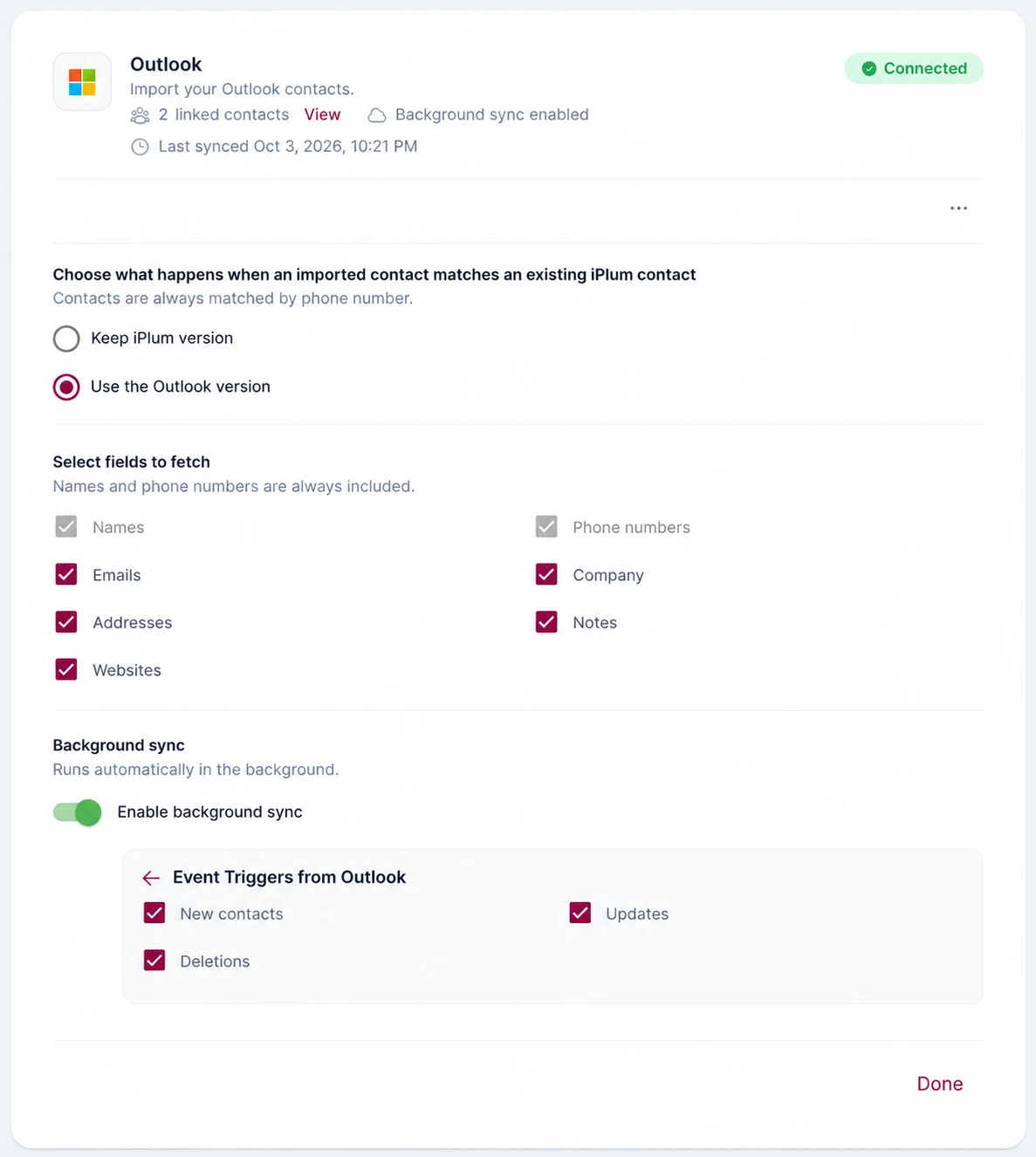
Your Outlook integration will display Connected, along with the number of linked contacts.
You can also see whether Background sync is enabled and when your contacts were last synchronized.
How Does iPlum Handle Outlook Contacts That Already Exist?
Contacts are matched using their phone number.
When an imported Outlook contact matches an existing iPlum contact, you can choose which version should take priority:
Keep iPlum version
Keeps the information already stored in your iPlum contact.
Use the Outlook version
Uses the information retrieved from the matching Outlook contact.
This helps prevent duplicate contacts while giving you control over which source should be used when matching contacts already exist.
Which Outlook Contact Fields Can I Import into iPlum?
Names and phone numbers are always included.
You can also select the following contact fields:
- Emails
- Addresses
- Websites
- Company
- Notes
Select the information you want iPlum to retrieve from Outlook and click Done when finished.
What Is Outlook Background Sync in iPlum?
Outlook Background Sync allows iPlum to automatically synchronize changes to your Outlook contacts without requiring you to manually refresh the integration each time.
Turn on Enable background sync to activate automatic synchronization.
When enabled, the Outlook integration displays the synchronization status and the time of the most recent sync.
Which Outlook Contact Changes Can Automatically Sync with iPlum?
When Background Sync is enabled, you can select which Outlook contact events should trigger synchronization with iPlum:
New contacts — Bring newly created Outlook contacts into iPlum.
Updates — Synchronize changes made to existing Outlook contacts.
Deletions — Synchronize contact deletions from Outlook.
You can select the event triggers appropriate for the way you want to manage your iPlum Contacts.
Can I Manually Refresh My Outlook Contacts?
Yes.
Even when Background Sync is enabled, you can select Manual Refresh whenever you want iPlum to retrieve the latest contact information from Outlook.
The integration also displays the date and time of the last synchronization, making it easy to see when your contacts were most recently updated.
How Do I View My Linked Outlook Contacts?
The Outlook integration displays the number of contacts currently linked to your Microsoft account.
Select View next to the linked contacts count to review the contacts associated with the integration.
Can I Change My Outlook Contact Import and Sync Settings?
Yes.
You can return to the Outlook integration at any time to change:
- How matching contacts are handled
- Which optional contact fields are imported
- Whether Background Sync is enabled
- Which Outlook events trigger Background Sync
Select Done after changing your settings.
Can I Turn Off Outlook Background Sync?
Yes.
Turn off Enable background sync if you no longer want changes from Outlook to synchronize automatically.
You can still use Manual Refresh when you want to retrieve updated contact information.
Can I Disconnect My Outlook Account from iPlum?
Yes.
Open the Outlook integration and use the three-dot menu (...) to access the available options for your connected account.
You can disconnect the Outlook account when you no longer want it linked to iPlum.
Which iPlum Plans Include Outlook Contacts Integration?
Outlook Contacts integration is available with iPlum Professional and Enterprise plans.
Users on these plans can connect their Microsoft Outlook account and import Outlook contacts directly into iPlum Contacts.
What Is the Difference Between Manual Refresh and Background Sync?
Manual Refresh retrieves the latest Outlook contact information when you select the button.
Background Sync automatically synchronizes selected Outlook contact events in the background. You can choose whether new contacts, contact updates, and deletions trigger synchronization.
You can use Background Sync while still using Manual Refresh whenever you want to initiate an immediate synchronization.
Why Use Outlook Contacts Integration with iPlum?
Outlook Contacts integration makes it easier to use your existing business contacts with your iPlum business phone system without manually recreating contacts.
You can connect your Microsoft account, select which contact information you want to bring into iPlum, control how matching contacts are handled, and automatically keep contact information synchronized using Background Sync.
%20(1).avif)
.avif)