
Advanced Texting Features: Internal Notes, Emoji Reactions & Message Replies
iPlum Advanced Texting lets you react to individual messages, reply with context, and keep private notes for your team alongside text conversations. This guide explains these features using screenshots from the iPlum mobile app.
1. Internal Notes & Team Collaboration
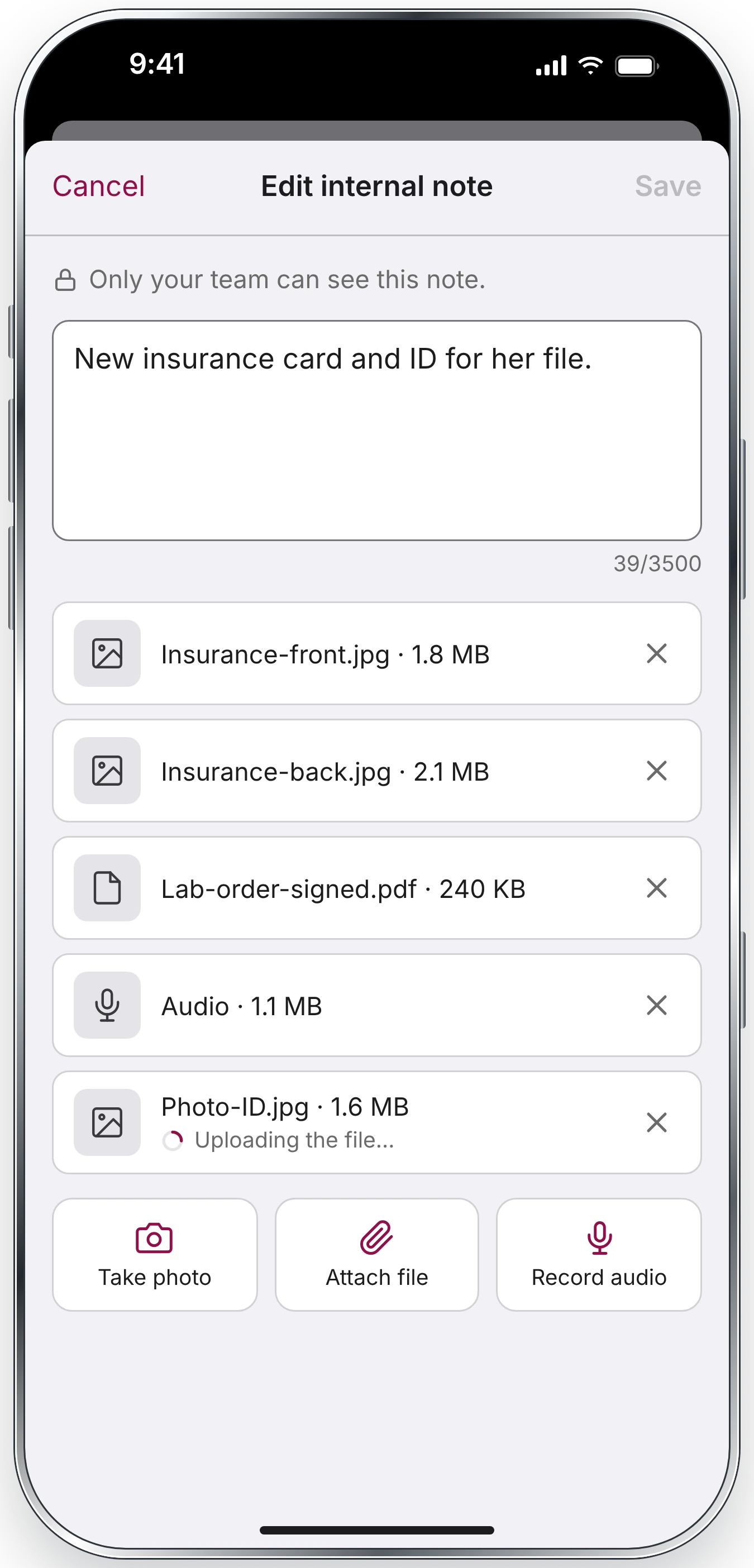
Internal Notes help your team preserve context, action items and follow-up details without sending that information to the external contact. The app indicates that only your team can see these notes.
- Open the relevant conversation.
- Tap Notes to see internal notes, or All to view notes together with texts.
- Tap Add note to create a new note.
- Use available edit or delete actions to maintain existing notes.
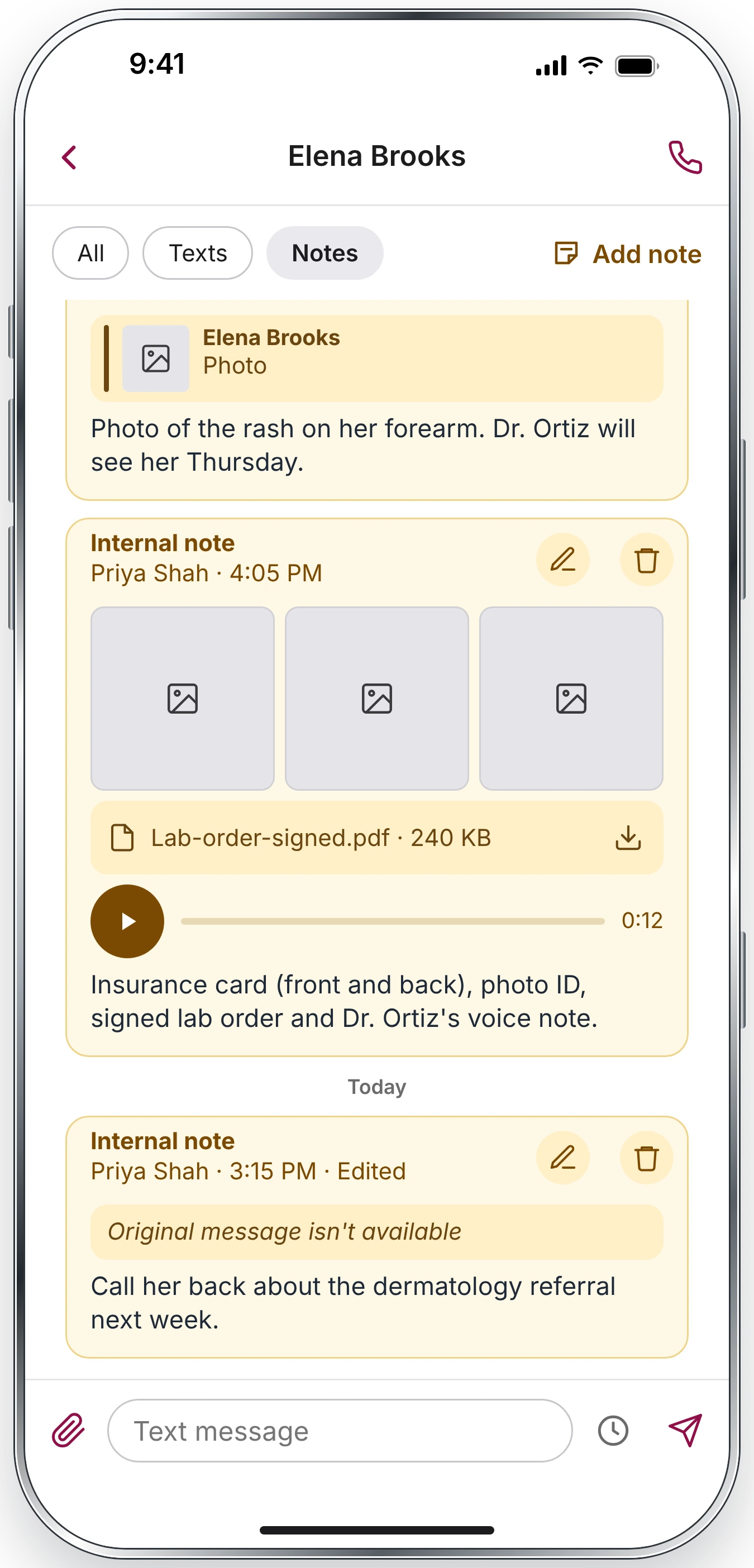
Attach notes to a particular text
Touch and hold the specific message, then select Add note. Where multiple notes are associated with a message, tap its notes indicator to open the list of notes and their authors.
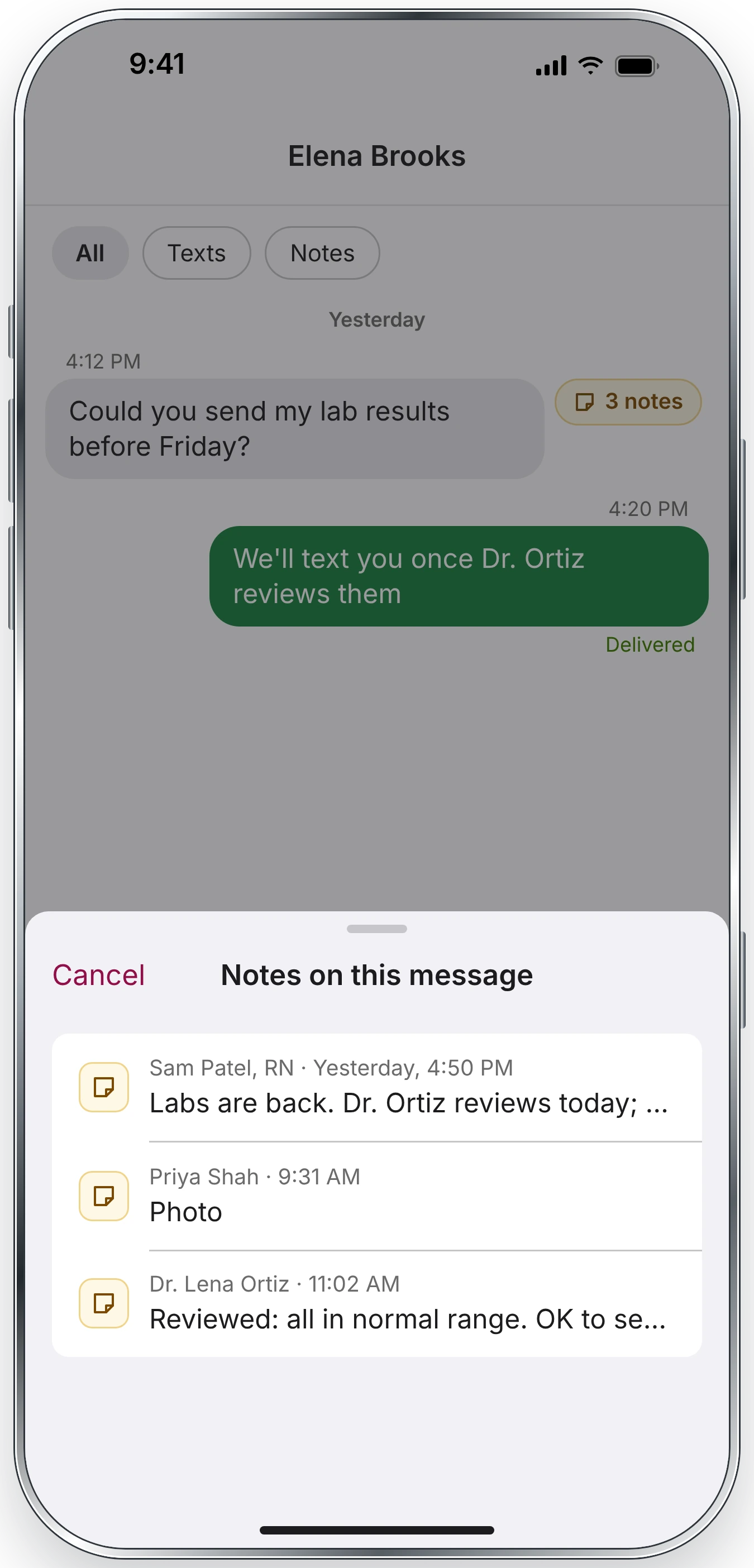
Write a Note and Add Attachments
The note editor supports text as well as the controls Take photo, Attach file and Record audio. For example, your team can include a document reference, pictures, or an audio reminder. Tap Save when the note is ready.
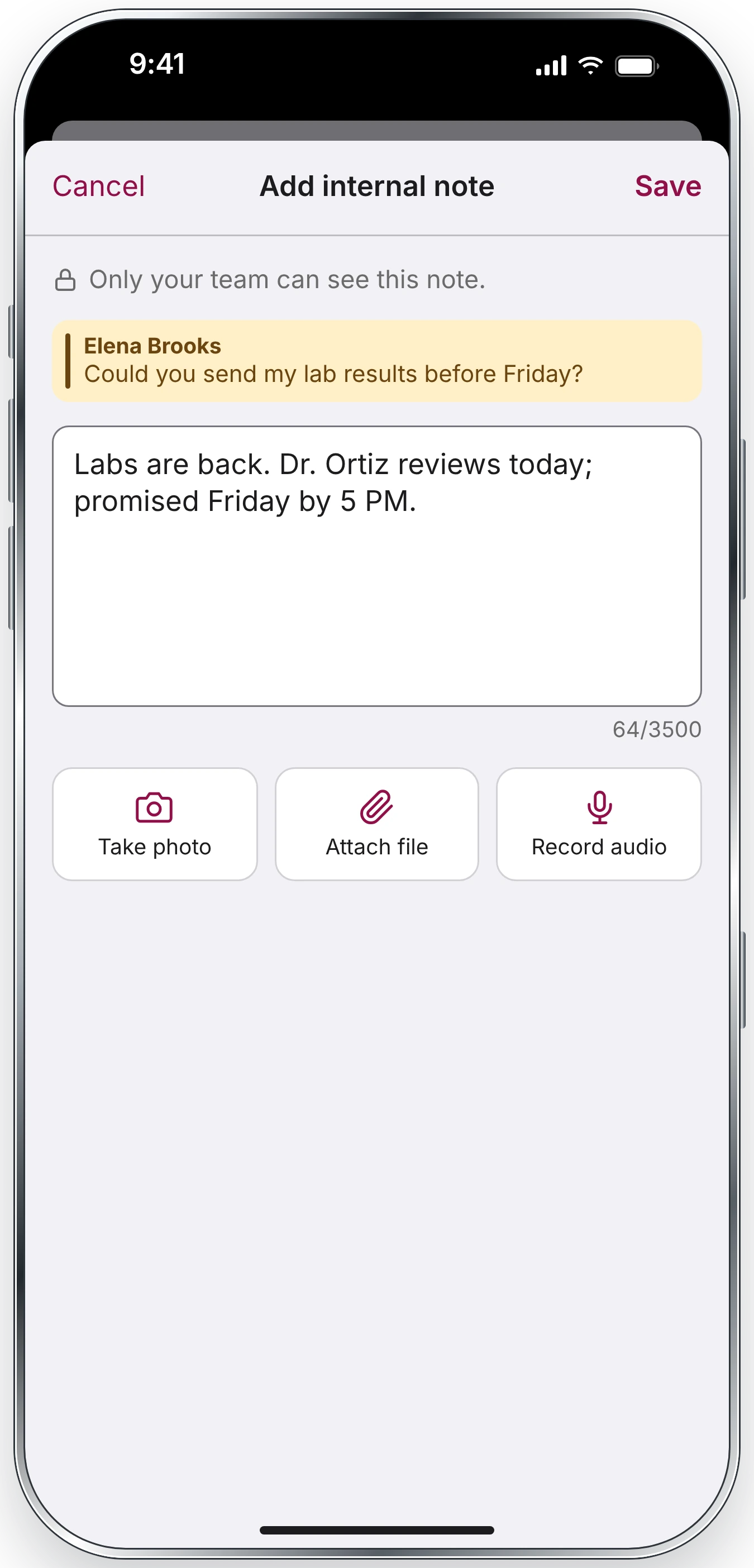
Edit a note with files
Open the note's edit action to revise its text or attachments. The editor displays attached items and a character counter. Use the available remove controls for attachments you no longer need, then save your changes. Follow the limits displayed in the app.
2. Reply to a Specific Message
Replies help keep the context clear when several people or topics are part of a conversation.
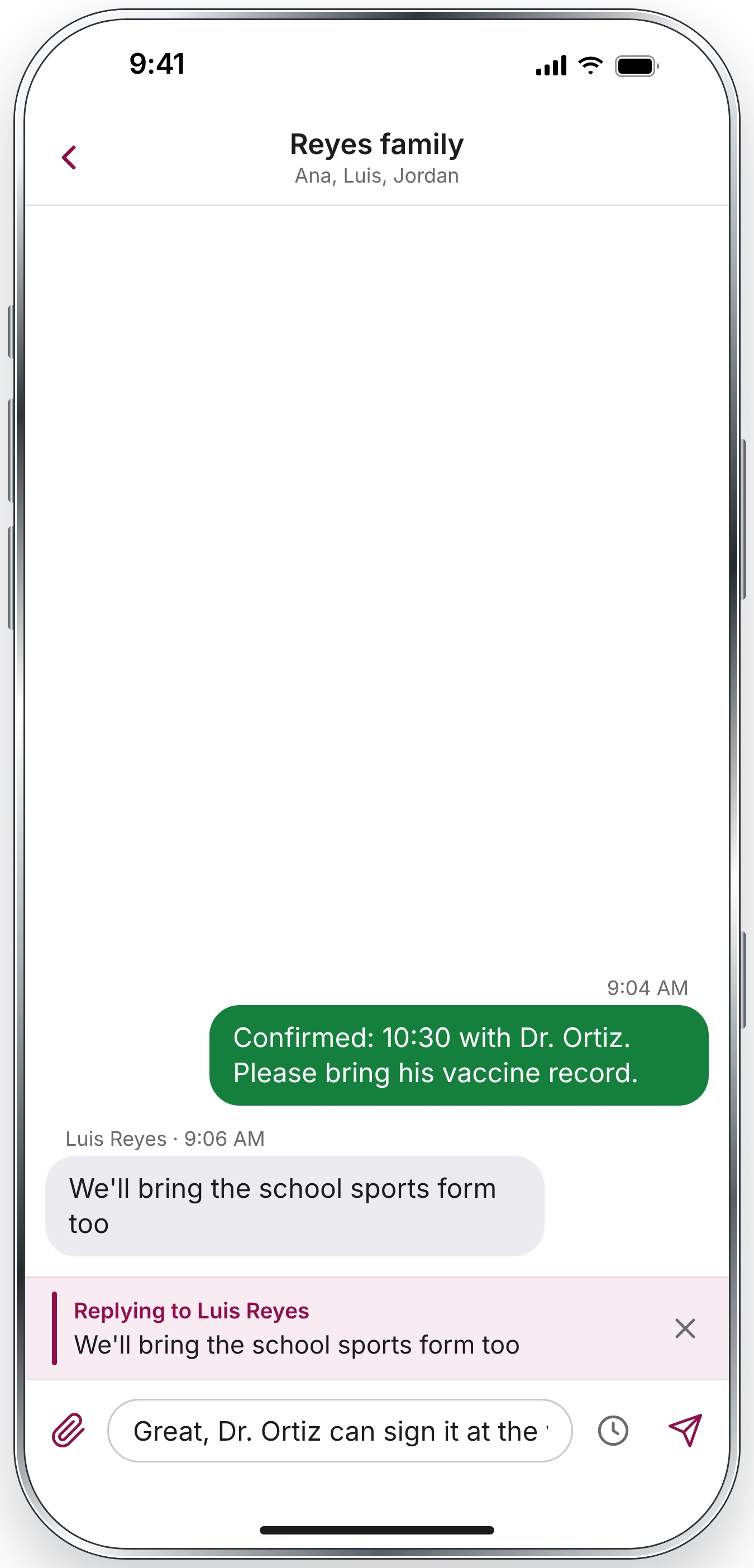
- Touch and hold the particular message.
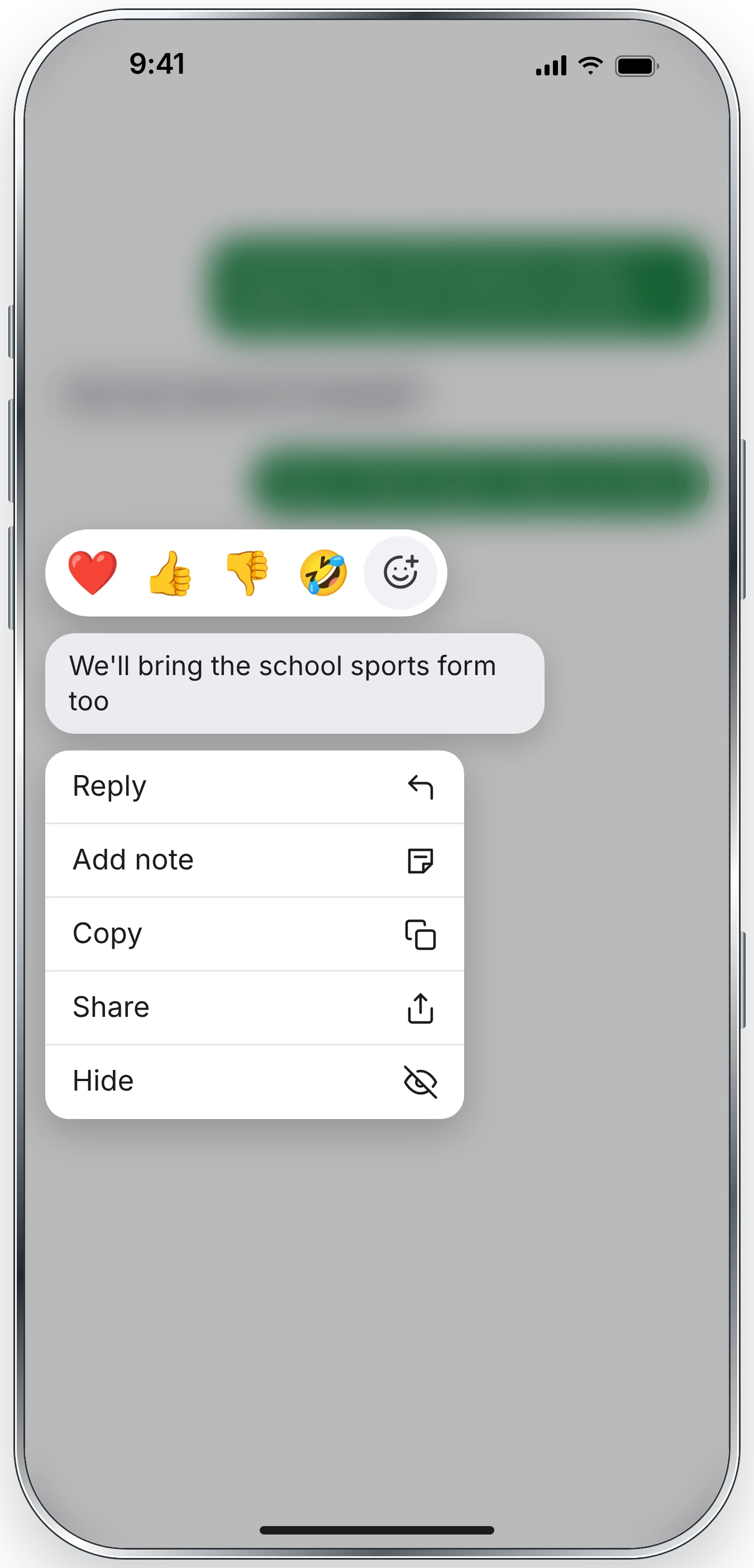
- Choose Reply from the message menu.
- The original message appears as a reference above your message composer.
- Type your response and tap Send.
3. Emoji Reactions
Emoji reactions offer a quick way to acknowledge a text without composing another message.
- Open a conversation, including a group conversation.
- Touch and hold the message you want to react to.
- Tap an emoji in the reaction bar, or use the additional emoji control if offered.
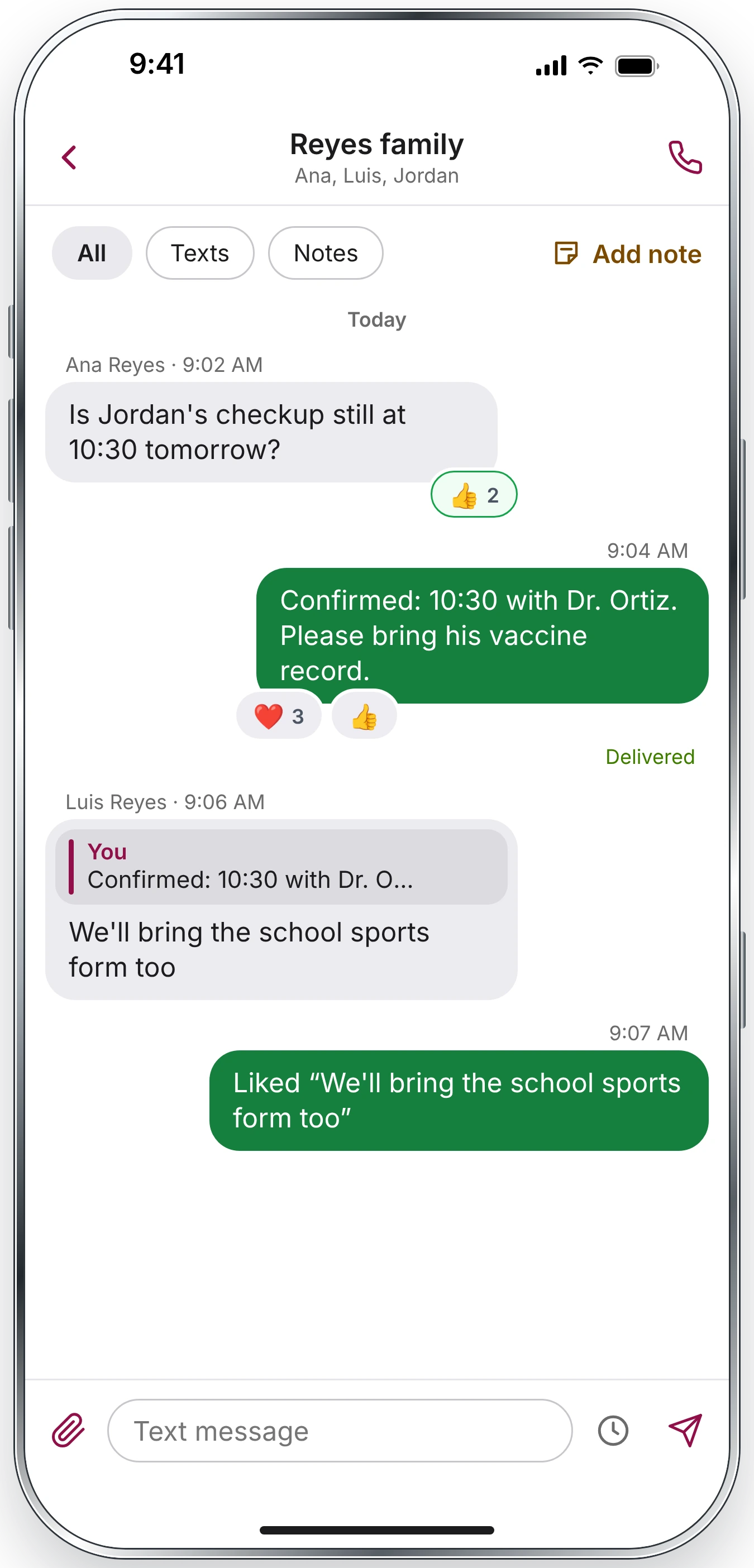
- Reactions appear beneath the corresponding message.
See who reacted
Tap the reaction indicators beneath a message to see which participants selected each reaction.

Frequently Asked Questions
Are internal notes sent to the other person?
No. Internal Notes are team-only content, not outgoing text messages. Authorized team members may see them in the conversation.
How do I reply to one message rather than the whole conversation?
Touch and hold that message, select Reply, compose your response, and send it.
Can I see who reacted in a group message?
Tap the reactions for the message to view participant details, as illustrated above.
Can I save photos, files and audio with an internal note?
The note editor includes actions for taking a photo, attaching a file and recording audio. Availability may depend on your app version and permissions.
Note: The exact menus and controls may vary by app version, device and account permissions.

