


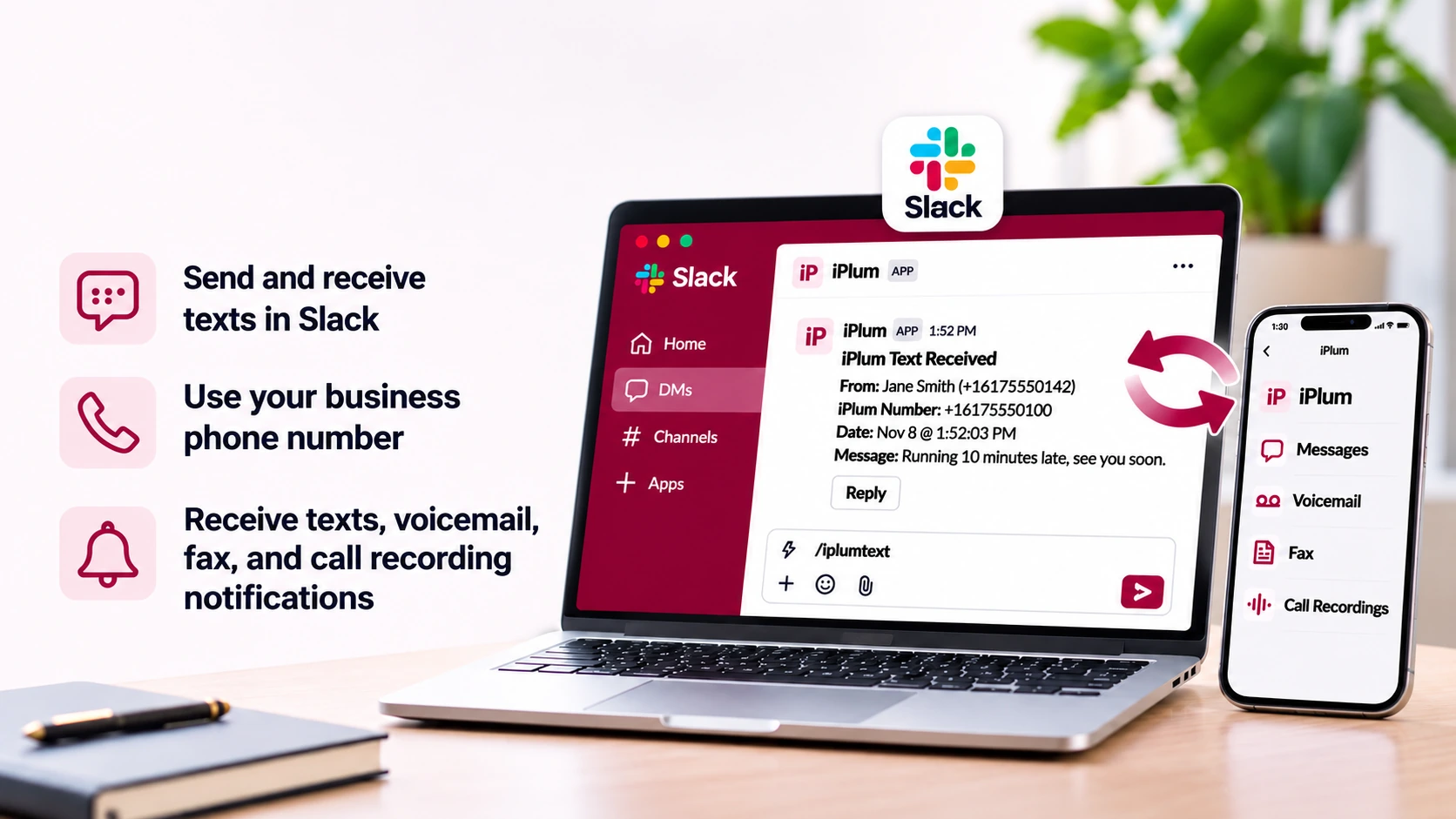
Can you send SMS and MMS messages without leaving Slack? With the iPlum Slack integration, an authorized member can receive business-text notifications, reply to incoming messages, and send new texts from the iPlum app inside Slack. Messages still belong to the configured iPlum business number, while Slack provides another place to manage conversations during the workday.
This guide walks through the setup and everyday workflow, including how to use /iplumtext, send attachments, choose group or broadcast messaging, handle failed texts, and control what information appears in Slack. It is based on iPlum's integration instructions. For step-by-step configuration screenshots, refer to the iPlum Slack Integration FAQ.
How Does Sending SMS and MMS Through Slack Work?
An iPlum account administrator links one Slack workspace to the iPlum account. The administrator then assigns individual iPlum lines to Slack members and selects where activity should appear. When a customer texts an enabled line, Slack shows an iPlum Text Received card with the sender, receiving iPlum number, date, and message, unless privacy controls hide some information.
Receiving notifications and sending messages are separate features. Administrators can direct notifications to an authorized Slack channel or to the assigned member's direct messages with the iPlum app. Outbound texting from Slack, however, works only in that member's direct messages with iPlum. A channel may display line activity, but it is not the place to send texts using the integration.
When texting from Slack is enabled, the member also sees outgoing messages sent from the iPlum mobile app and web portal. Incoming and outgoing messages can therefore appear together in the Slack direct-message conversation.
Why Teams May Want Business Texting in Slack
A team that works in Slack throughout the day may benefit from seeing iPlum message alerts alongside other work conversations. For example, an office administrator can review a new appointment-related text, a support representative can reply to a business inquiry, or an assigned employee can send a brief update without first switching to the iPlum web portal.
These are examples of a workflow, not automatic permissions for the entire Slack workspace. The iPlum account administrator determines which line is connected, the assigned Slack member, and the notification destination. Information posted to a channel is visible to members of that channel. A member's direct-message conversation is the required destination for sending and replying from Slack.
The benefit is convenience without changing the business phone number used for the conversation. Slack provides an additional interface; the underlying communication continues through the iPlum line and its configured features.
Before You Start: Requirements
The iPlum account administrator is the person who connects the Slack workspace and configures each line. Regular users can see their own Slack settings, but the administrator controls configuration changes. The administrator also needs permission to add apps to the Slack workspace or approval from a Slack workspace administrator.
Each iPlum line is linked to a full Slack member rather than a guest. If a Slack member's email matches the iPlum user's email, the setup screen may suggest that member automatically. Review that suggestion before selecting the person.
Sending texts from Slack requires three additional settings: the destination must be Direct message to the member, notifications must be enabled, and Messages must be selected. A Slack member can send through only one assigned iPlum line using this integration at a time. The integration also requires iPlum Enterprise on every line in the account.
Step 1: Connect the Slack Workspace to iPlum
In the iPlum web portal, sign in as the account administrator and select Integrations from the left menu. Choose the Account tab. In the Collaboration section, find Slack and turn on Enable. iPlum redirects you to Slack to authorize the connection.
Check the workspace name displayed in Slack. If it is not the workspace you intend to connect, switch to the correct one. Review the permissions requested by iPlum and click Allow. When you return to the iPlum portal, the Slack card should show Connected and the name of the linked workspace.
Connecting the workspace alone does not begin posting messages. Each line must be configured separately. An iPlum account connects to one Slack workspace at a time; to change workspaces, disconnect the existing one before authorizing another.
Step 2: Configure the iPlum Line and Its Slack Member
Open Integrations → Users and choose the user whose iPlum line you want to configure. Find the Slack card, which initially says the user is not configured, and select Configure. Under Slack member, choose the appropriate full member of the workspace. If iPlum suggests a match by email, you can select Use after confirming it.
In Channel/DM, choose Direct message to the member when the person must send or reply to texts from Slack. Turn on Enable notifications and check Messages in Post to Slack. You can also choose other activity categories—Call Recordings, Voicemails & Transcriptions, or Fax Documents—according to the organization's needs. Click Save to complete the new configuration.
If you use a private Slack channel for notifications, add the iPlum app to that channel first with /invite @iPlum or through the channel's Integrations → Add apps menu. Then use Refresh list in iPlum so that the channel appears.
Step 3: Enable Texting from Slack
After the line is configured for direct messages and Messages notifications, turn on Enable texting from Slack. When configuring a new line, click Save. When editing an existing configuration, each change saves as it is made; Done closes the editing panel.
The requirements must remain in place. Changing the destination to a channel, turning off notifications, or unchecking Messages also disables Slack texting. The account administrator can restore the required settings to make the control available again.
One Slack member can send texts from one iPlum line through the integration. If that member is already assigned for texting on another line, the setup screen reports that the member already uses another iPlum number. The administrator must decide which line that person should use from Slack.
How to Send an SMS Text from Slack
The assigned member opens Slack, finds the iPlum app, and selects its Messages tab. Type /iplumtext and press Enter. This opens the Send Text form. Select people from Contacts—your iPlum business contacts—or manually enter the destination under Or enter numbers.
For a manually entered number, include + followed by the country code, such as +14155550100. Multiple recipients can be placed on separate lines or separated by commas. Type your message into the Text field, review the recipient information, then click Send.
Nothing is sent simply by opening the form or typing the command. The member must click Send to transmit the message. This allows time to check the recipient, number, and message before a business text leaves the configured iPlum line.
How to Send MMS or Attach a File
To add a photo or another supported file, use Attachment in the same Send Text form. Select the recipient, enter the message, attach the file, and review everything before clicking Send. The recipient receives the communication through the configured iPlum line rather than through a separate Slack identity.
In Slack's received-text card, a photo can appear directly. Another attachment may be identified by file type, such as Video (MP4), with View in iPlum available to open the associated item. Large files and files a carrier cannot transmit as media can be delivered as a link instead.
This is why the SMS/MMS workflow should not be understood as unlimited attachment delivery. Supported file behavior depends on the attachment and carrier's media handling. When a media message does not behave as expected, review the message details and the underlying item in iPlum.
Save Time with the /iplumtext Shortcut
If you already know the number and message, include both in the command. For example, typing /iplumtext +14155550100 On my way in the iPlum app's Messages tab opens the Send Text form with the number and message already filled in.
The message is not sent automatically. You still have to review the information and click Send. The shortcut is intended to prepare the form more quickly, not to skip confirmation. It works in the Messages tab of the iPlum app inside Slack.
If you type the command in a different Slack location, the integration responds that /iplumtext must be used in the iPlum app's Messages tab. Navigate to that tab and try again.
How to Receive and Reply to Customer Texts
When an incoming text reaches a configured iPlum number, Slack creates an iPlum Text Received card. The card generally identifies the sender, iPlum number, date, and message. If Slack texting is enabled for the assigned member, it also has a Reply button.
Select Reply, type the response, and click Send. You do not need to manually copy the sender's number into a new form for that response. A reply to a group text goes to the entire group, not only to the sender whose message you happened to open.
If Reply does not appear, check that the user is in the iPlum direct-message conversation and that outbound texting is enabled for their assigned line. Receiving notifications in a channel does not itself enable outbound texting.
Group Texting Versus Broadcast Texting
When you add two or more recipients, the Send Text form offers Group and Broadcast. Group sends a message into one conversation where participants can see replies. Broadcast sends separate messages to recipients so that each person has an individual conversation.
For example, a small team coordinating a common task might prefer Group, while an organization sending the same routine notice individually could choose Broadcast. The appropriate choice depends on whether recipients should see one another's responses.
Slack cards identify group and broadcast text activity. When you receive a group text and select Reply, your reply goes to the whole group. Check the recipient list and conversation type before responding, especially when several people are included.
Sent Texts, Delivery Failures, and Resending
For an iPlum line with texting from Slack enabled, Slack displays outgoing message cards even if a text was sent from the iPlum mobile app or web portal rather than from Slack itself. That makes the direct-message history more useful for reviewing an ongoing exchange.
If a text cannot be delivered, iPlum adds a notice under its card with the affected recipient and reason. The card is marked to indicate failure. If a retry is available, the notice shows Resend. Clicking it reopens the Send Text form with the previous text filled in for review.
A manually entered number may also be rejected if it omits the country code or leading plus sign. Check the format before retrying. For an attachment, review whether the carrier accepted it as media or whether it was presented as a link.
Privacy: What Should Slack Members Be Able to See?
Administrators should choose message destinations with care. Everyone who has access to a selected Slack channel can see the information posted there. Direct messages go to the configured member and are also the required destination for sending texts from Slack.
iPlum offers privacy controls for selected notification categories. Administrators can hide the other party's phone number. For message notifications, they can hide the message text; for voicemail, they can hide audio and transcription. When configured, the omitted information is not included in the Slack card.
Organizations handling confidential or regulated information should review their own policies, workspace membership, and notification settings before enabling Slack posts. Connecting tools does not by itself establish that every information-sharing workflow meets a particular compliance requirement. Share only the details appropriate for the selected destination.
What Else Does iPlum Send to Slack?
Besides texts, an enabled line can send voicemail, fax, and call recording activity to Slack, depending on the categories selected by the administrator. A voicemail card can include playable audio and its transcript. A fax card can show whether a fax was received, sent, or failed, including pages and a failure reason where applicable.
A call recording card includes details about the call and a View in iPlum link to play the recording in the web portal. Ordinary calls themselves do not appear as separate call events. A missed call that leaves a voicemail is represented by the voicemail notification.
View in iPlum links on the cards allow members to open underlying details in the web portal. Times on Slack cards display in the viewing member's Slack time zone.
Troubleshooting Slack SMS and MMS Texting
If texting cannot be enabled, confirm that Direct message to the member is selected, Enable notifications is on, and Messages is checked. If Slack says the member already uses another iPlum number, that person has an existing texting-line assignment.
If /iplumtext fails to open the form, enter it from the iPlum app's Messages tab. If a phone number is refused, include + and the country code. If no line activity appears, check the line's notification settings and the Account tab for paused lines or a Reconnect needed status.
A missing private channel usually means the iPlum app has not been added to it. Add the app and refresh the list. If you see an Enterprise Plan badge, check that every iPlum line meets the plan requirement. For detailed error messages and screenshots, use the Slack setup and troubleshooting FAQ.
How to Change or Disconnect the Integration
The iPlum account administrator controls these settings through Integrations. To edit a line, choose Users, select the user, and click Edit on the Slack card. Changes to an existing configuration save as they are made; Done closes the panel.
To stop the connection for one line, open that line's three-dot Slack menu, choose Remove from this user, and confirm. Other configured lines remain connected. To stop Slack for the entire iPlum account, open Integrations → Account, choose Disconnect from the Slack card's menu, and confirm. Disconnecting clears the account's line-level Slack settings.
If the Slack card instead shows Reconnect needed, select Reconnect to restore the connection and the line settings. A cancelled iPlum line or a user removed from the account no longer has active Slack configuration.
Frequently Asked Questions About Texting in Slack
Can I send a text without using the iPlum mobile app?
Yes. An assigned member can send a new text from the iPlum app's Messages tab in Slack after the administrator enables texting.
Can I send from a shared Slack channel?
No. Channels can receive permitted notifications, but outbound texting works through the member's direct messages with the iPlum app.
Can I reply to a group message?
Yes. Selecting Reply on a group text sends the response to the entire group.
Can I include an MMS attachment?
Yes, the Send Text form includes Attachment. Large or unsupported carrier-media files may be delivered through a link.
Can I use more than one iPlum number?
One Slack member can send texts through one iPlum line at a time with this integration.
Get Started with iPlum Texting in Slack
To start sending SMS and MMS through Slack, connect your workspace to iPlum, configure a line for its assigned full Slack member, select direct messages as the notification destination, turn on Messages notifications, and enable Texting from Slack. The member can then use /iplumtext to prepare a new text or Reply on a received text card.
The difference between channel notifications and member-to-member texting is essential. Choose a destination that fits both the workflow and the information being shared. For the precise settings and screenshots, open How to Integrate Slack with iPlum. You can also review iPlum Text Features and Managing iPlum Team Users.

