


%20(1).avif)
.avif)
Introduction
In a world where staying connected is paramount, call forwarding stands out as an essential tool for both individuals and businesses. This telephony feature ensures that important calls are never missed, enhancing communication strategies, particularly in high-stakes environments like healthcare. With options ranging from unconditional to conditional forwarding, users can tailor their settings to meet specific needs. This customization guarantees timely responses while maintaining a professional image.
As businesses adapt to the demands of modern communication, understanding the nuances of call forwarding and its integration with advanced features can significantly improve customer satisfaction and operational efficiency. This article delves into the intricacies of call forwarding, offering practical guidance on setup, troubleshooting, and best practices for maximizing its benefits.
Understanding Call Forwarding: What It Is and How It Works
Phone redirection is a telephony feature that enables incoming communications to be sent to another number. This ensures that important conversations are never overlooked, even when users are unavailable at their main number. With strong options for redirecting communications, including:
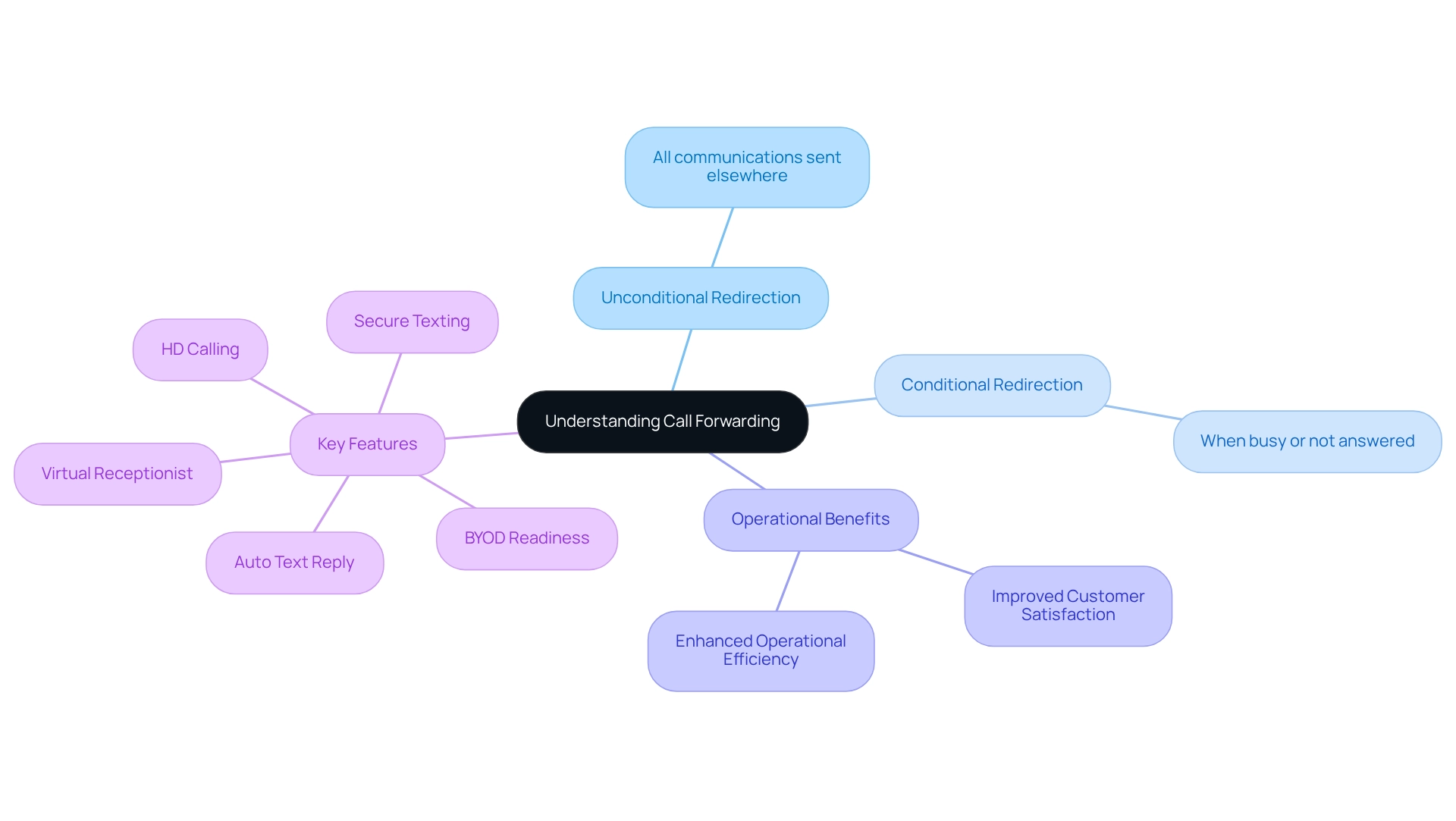
- Unconditional redirection—where all communications are sent elsewhere.
- Conditional redirection, which occurs under specific circumstances, such as when the line is busy or not answered.
Understanding these options is vital. This knowledge enhances communication strategies, particularly in professional environments like healthcare, where prompt responses are essential.
In a corporate context, these forwarding features uphold a professional image and guarantee that customer inquiries are handled swiftly. This not only improves customer satisfaction but also enhances operational efficiency. With attributes such as HD calling, secure texting, and adherence to HIPAA regulations, iPlum offers extensive mobile communication solutions tailored for healthcare IT directors and other professionals. Furthermore, the virtual receptionist capability allows businesses to establish a phone tree, ensuring that inquiries are efficiently routed to the appropriate departments. This further optimizes operations and enhances client communication.
The Auto Text Reply feature significantly improves responsiveness by sending personalized, automated follow-up messages for missed communications. In addition, iPlum's Bring-Your-Own-Device (BYOD) readiness enables users to integrate the iPlum business line app into their existing phones, providing both flexibility and convenience. Are you ready to elevate your communication strategy? Explore iPlum today and experience the difference.
Step-by-Step Guide to Setting Up Call Forwarding on Android
To set up call forwarding on your Android device, follow these steps:
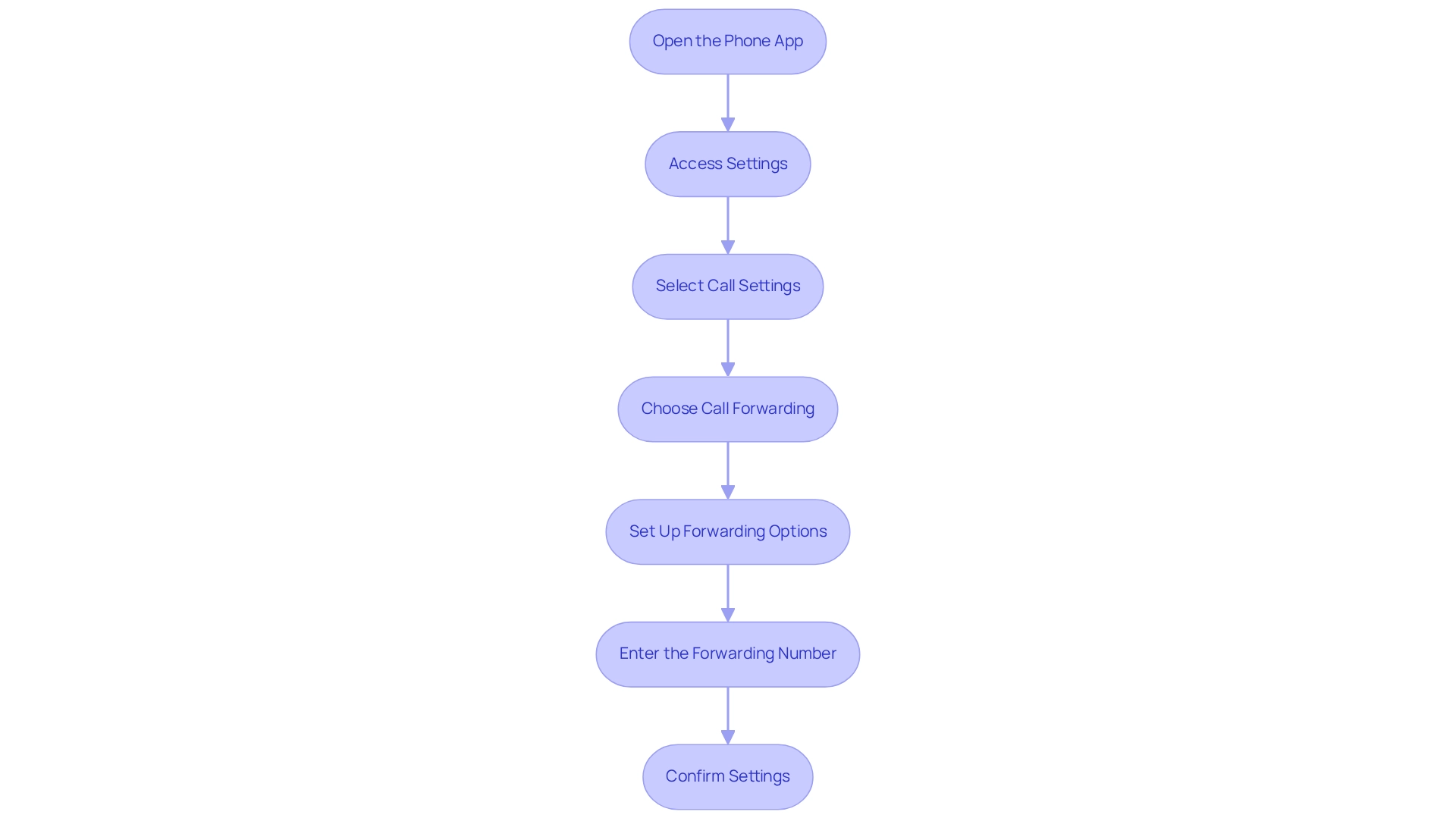
- Open the Phone App: Launch the default Phone app on your Android device.
- Access Settings: Tap the three-dot menu icon, typically in the top right corner, and select 'Settings'.
- Select Call Settings: Look for 'Call Settings' or 'Calling Accounts' and tap on it.
- Choose Call Forwarding: Locate the 'Call Forwarding' option, which may be under 'Supplementary Services' or a similar category.
- Set Up Forwarding Options: You will see various options:
- Always Forward: Redirect all incoming calls.
- Forward When Occupied: Redirect calls if you are on another conversation.
- Forward When Unanswered: Redirect calls if you do not respond.
- Forward When Unreachable: Redirect calls if your phone is off or out of service.
- Enter the Forwarding Number: Input the phone number to which you want your calls forwarded.
- Confirm Settings: Save your settings and exit the menu.
By following these steps, you can effectively manage your communications with call forwarding on Android, ensuring you remain connected even when you are not reachable at your primary number.
Troubleshooting Common Call Forwarding Issues on Android
If you encounter issues with call forwarding on your Android device, consider these essential troubleshooting tips:
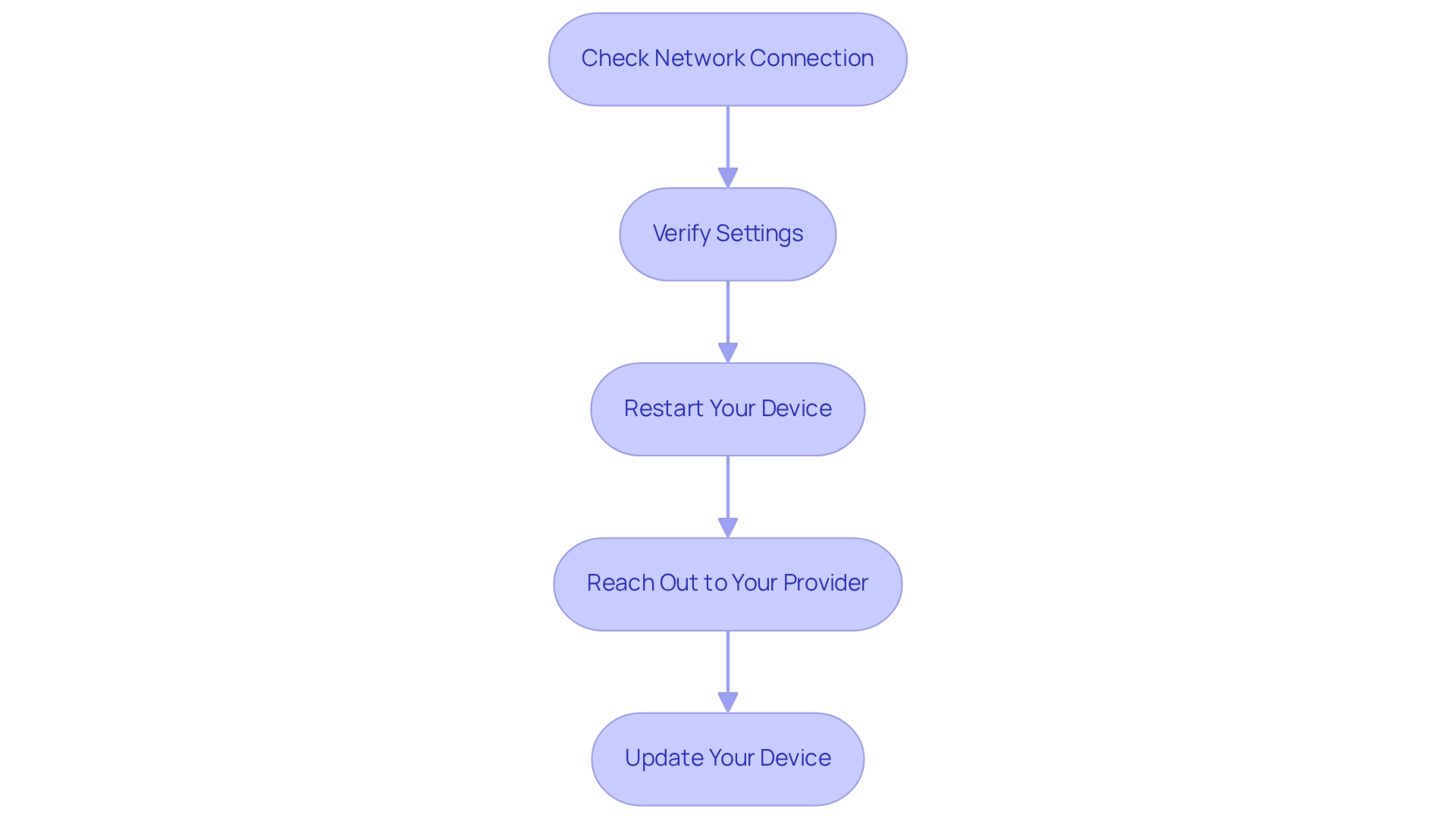
- Check Network Connection: Ensure that your device has a stable network connection. The transfer of calls relies heavily on your carrier's network.
- Verify Settings: Double-check that the phone redirection options are set up accurately. Occasionally, settings may revert or fail to save properly.
- Restart Your Device: A simple reboot can frequently resolve temporary issues that may affect communication redirection.
- Reach Out to Your Provider: If call transferring remains non-functional, there may be limitations or problems with your mobile provider. Contact their customer support for assistance.
- Update Your Device: Ensure that your Android device is running the latest software version. Updates can fix bugs and enhance functionality.
By adhering to these troubleshooting steps, you can swiftly address common problems and ensure that your call forwarding mechanism operates as intended.
Advanced Call Forwarding Techniques: Customizing Your Settings
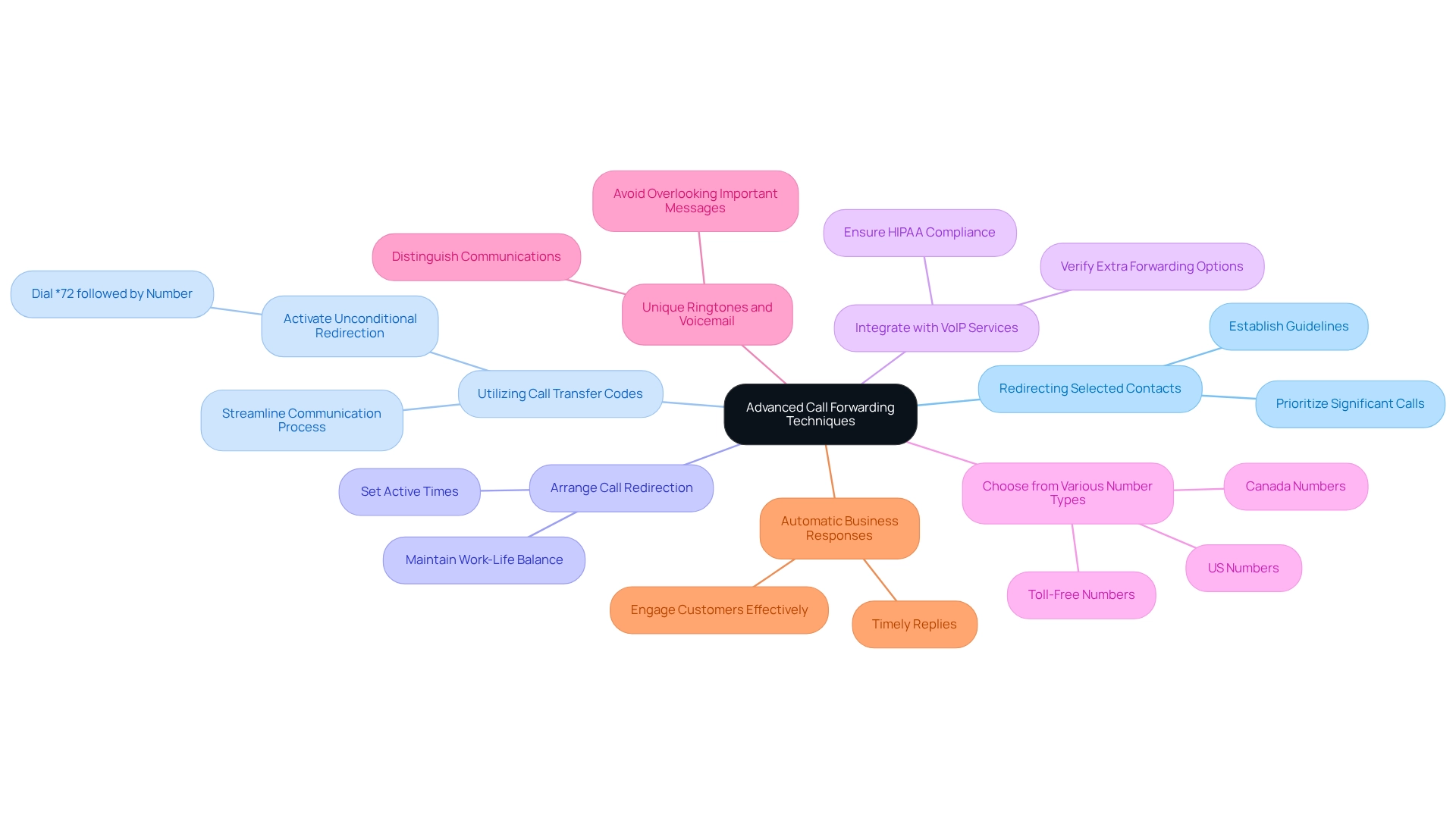
For users seeking to personalize their phone routing configurations more deeply, it is essential to explore advanced methods that align with iPlum's powerful functionalities.
- Redirecting Selected Contacts: This application allows you to establish guidelines for redirecting calls from selected contacts, ensuring that significant calls from patients or colleagues are prioritized.
- Utilizing Call Transfer Codes: The app enables you to employ specific codes to activate various types of transfer swiftly. For instance, dialing
*72followed by the number can activate unconditional redirection, streamlining your communication process. - Arrange Call Redirection: The capabilities of the service allow you to set when redirection is active, which is advantageous for maintaining work-life balance, particularly in a challenging healthcare setting.
- Integrate with VoIP Services: If you utilize VoIP services, verify whether they provide extra forwarding options that can be incorporated with your account, improving your communication abilities while ensuring adherence to HIPAA regulations.
- Choose from Various Number Types: The service offers the flexibility of selecting from US, Canada, or Toll-Free numbers, enabling you to create a professional presence suited to your business requirements.
- Unique Ringtones and Voicemail: Enjoy the advantages of unique ringtones and voicemail options that assist in distinguishing between personal and business communications, ensuring you never overlook an important message.
- Automatic Business Responses: Utilize iPlum's automatic business responses capability to engage customers effectively, offering timely replies while you concentrate on your healthcare duties.
By employing these advanced methods, including call forwarding on Android, you can customize your communication settings to better fit your personal or business interaction requirements. This ensures that sensitive information is managed securely while improving customer engagement.
Call Forwarding vs. Other Call Management Features: What You Need to Know
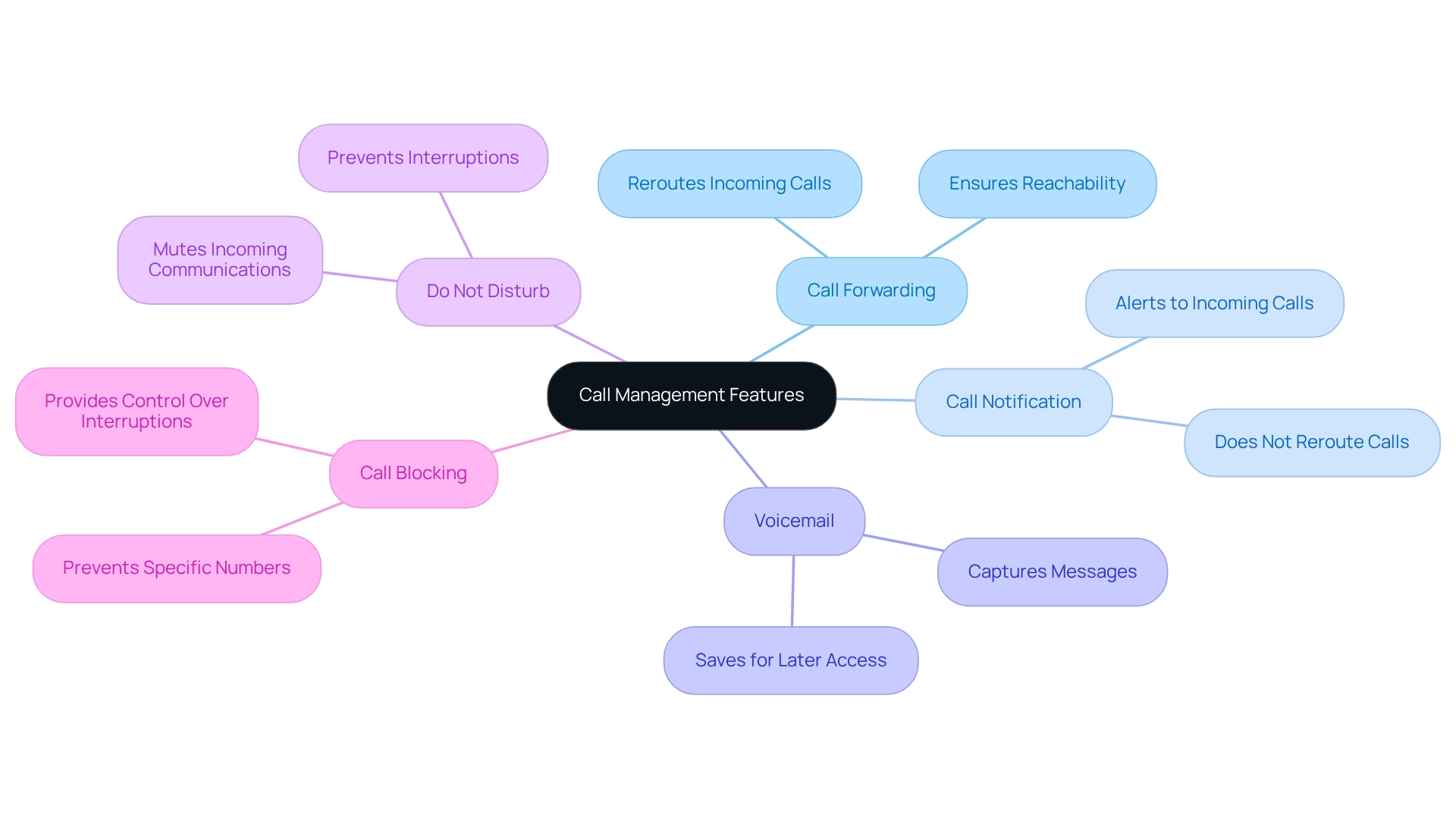
Transferring incoming communications is merely one of the many management options available, including call forwarding on Android devices. Understanding how this compares to other options is essential for effective communication management.
-
Call Notification: This feature alerts you to incoming communications while you are engaged in another conversation. Unlike transferring, it does not reroute communications but simply notifies you of their existence.
-
Voicemail: Voicemail captures messages when you are unavailable. While redirecting can send communications to another number, voicemail saves messages for later access, ensuring you don’t miss important information.
-
Do Not Disturb: This feature mutes incoming communications and notifications during designated periods. Although it can stop interruptions, it does not manage communications as transferring does, which can be crucial during critical tasks.
-
Call Blocking: This allows you to prevent specific numbers from reaching you. Unlike redirecting, which sends communications, blocking entirely prevents them, providing a layer of control over unwanted interruptions.
Grasping these distinctions is vital. It can assist you in selecting the appropriate mix of attributes, including call forwarding on Android, to manage your communications efficiently. By doing so, you can ensure you remain reachable while retaining control over your interactions.
The Benefits of Call Forwarding for Business Communication
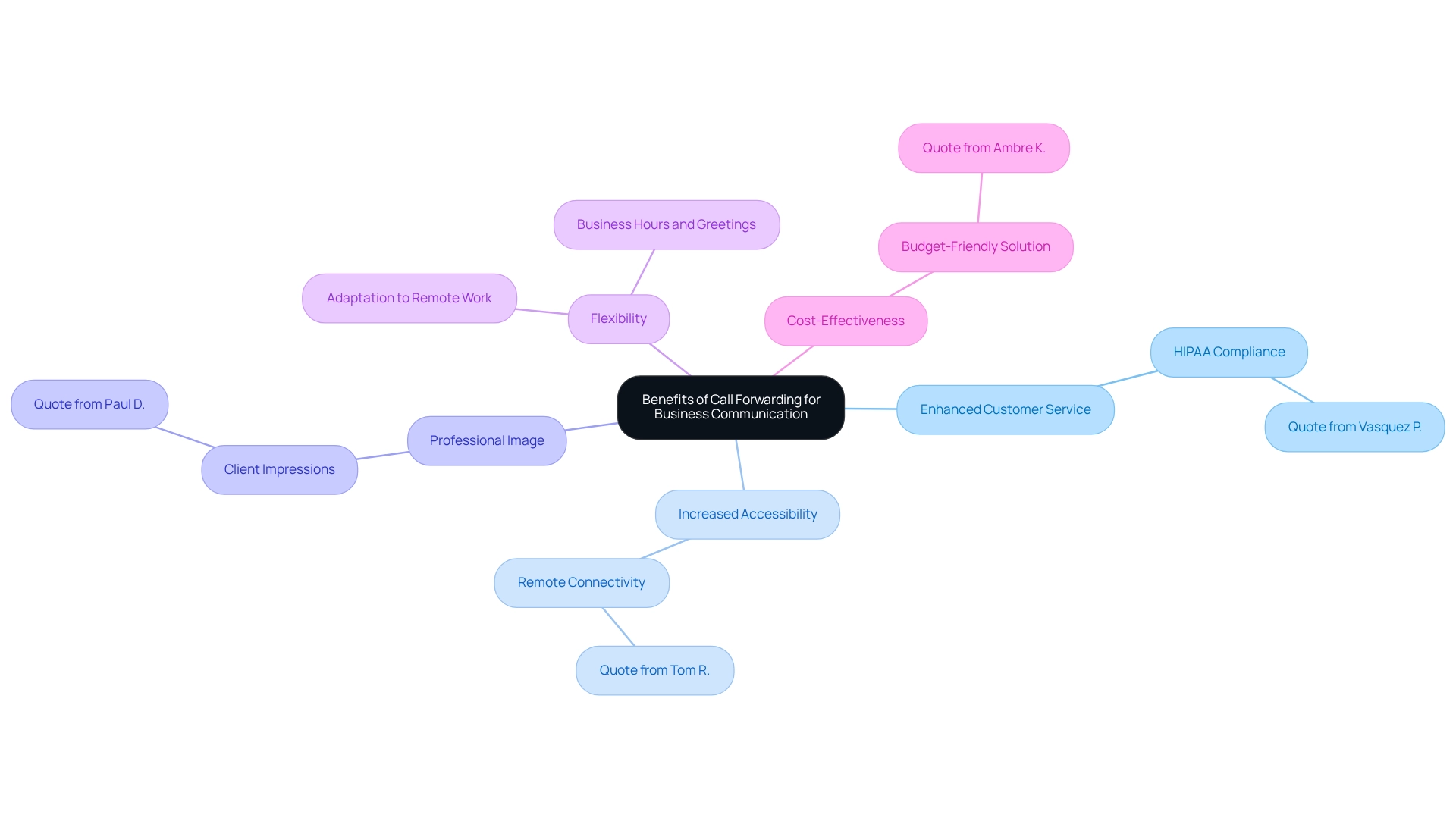
Call forwarding on Android presents significant advantages for businesses, particularly in enhancing customer service. By ensuring that calls are answered promptly, businesses can elevate customer satisfaction and loyalty. As noted by Vasquez P., a neurosurgeon, maintaining a HIPAA-compliant phone line is essential for effective communication with patients, a capability this service has provided him for years.
Furthermore, increased accessibility allows employees to remain connected even when away from their desks, facilitating seamless communication with clients and colleagues. Tom R., a real estate expert, highlights the value of this service in managing business communications effectively, recommending it to many entrepreneurs for its outstanding features. The use of telephone redirection also supports a professional image, directing inquiries to the appropriate team members or departments.
Paul D., an IT consultant, emphasizes that this service enables him to present a professional demeanor at a reasonable cost, impressing clients with the simplicity of communication. Additionally, flexibility is a key benefit; businesses can adapt to changing circumstances, such as remote work, by redirecting calls to mobile devices or other locations. The application’s features, including the ability to set business hours and automated greetings, provide the necessary adaptability for modern business operations.
Moreover, call redirection offers cost-effectiveness by reducing the need for additional phone lines or staff, making it a budget-friendly solution for managing communications. Users like Ambre K., a reporter, find the pricing of this service quite reasonable while still benefiting from robust features that enhance their communication capabilities.
In conclusion, by utilizing call forwarding on Android, companies can optimize their communication methods, ensuring responsiveness and effectiveness in today’s fast-paced environment. This application provides a user-friendly business phone solution that not only meets HIPAA compliance but also delivers exceptional customer service tailored for small enterprises.
Ensuring Security and Privacy in Call Forwarding: Best Practices
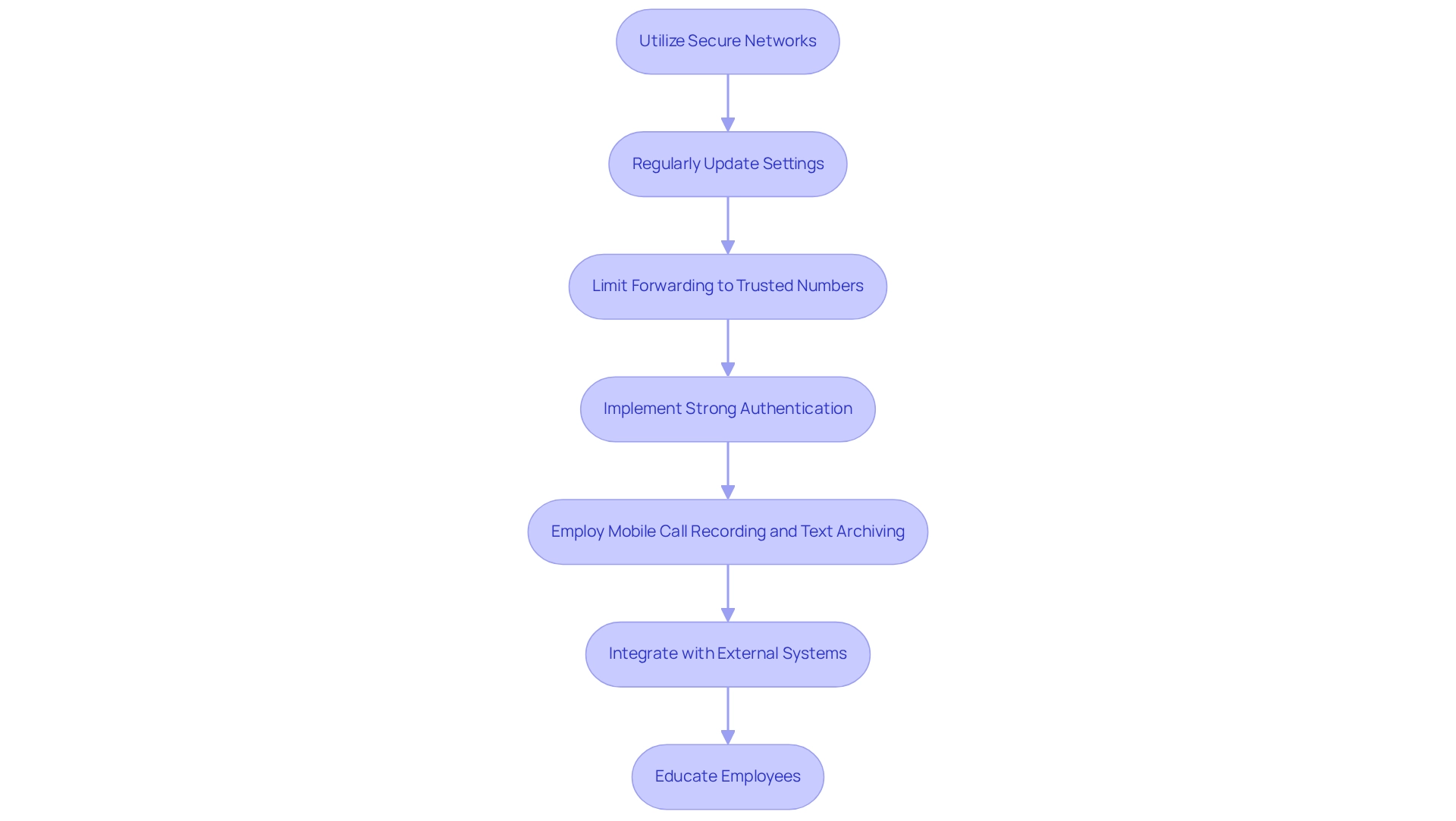
To guarantee safety and confidentiality when utilizing phone redirection with this service, consider the following best practices:
-
Utilize Secure Networks: Always set up redirection settings over secure, private networks to prevent unauthorized access. The advanced encryption from this service ensures that your data remains protected during transmission.
-
Regularly Update Settings: Periodically review and update your forwarding settings to ensure they align with your current needs and security protocols. iPlum allows for easy adjustments to maintain compliance with evolving regulations.
-
Limit Forwarding to Trusted Numbers: Only redirect communications to numbers that you trust to minimize the risk of sensitive information being intercepted. This practice is crucial for maintaining the integrity of communications in public sector operations.
-
Implement Strong Authentication: Use strong passwords and, if available, two-factor authentication for accessing forwarding settings. The advanced password policy of the service enhances security by necessitating complex passwords and frequent updates.
-
Employ Mobile Call Recording and Text Archiving: Take advantage of the mobile call recording and text archiving capabilities to ensure regulatory compliance with Dodd-Frank and Consumer Protection Acts. These features help maintain a record of communications that can be essential for audits and compliance checks.
-
Integrate with External Systems: Utilize the API to connect with external systems, EHR, and EMS for efficient usage management and enhanced visibility.
-
Educate Employees: Ensure that all employees understand the importance of security in call forwarding on Android and are trained on best practices. iPlum provides resources to help your team stay informed about compliance and security measures.
By following these best practices, organizations can protect their communications, maintain the confidentiality of sensitive information, and leverage iPlum's robust features to cut costs while improving service.
Conclusion
Call forwarding stands as a formidable telephony feature, significantly enhancing communication for individuals and businesses alike. By redirecting calls to alternative numbers, it guarantees that crucial conversations are never missed, especially in high-stakes environments such as healthcare. This article has outlined various facets of call forwarding, including setup, troubleshooting tips, and advanced techniques for customization, all contributing to a more efficient communication strategy.
Businesses can reap tremendous benefits from implementing call forwarding. This feature not only bolsters customer service by ensuring prompt responses but also enhances accessibility and flexibility for employees. Furthermore, maintaining a professional image and controlling operational costs are key advantages that can be leveraged through effective call management.
In today's fast-paced world, understanding and utilizing call forwarding can lead to improved customer satisfaction and operational efficiency. By adopting best practices for security and privacy, organizations can safeguard sensitive information while maximizing the advantages of this essential communication tool. As the landscape of business communication continues to evolve, integrating advanced features of call forwarding will undoubtedly play a critical role in driving success and maintaining a competitive edge.
Frequently Asked Questions
What is phone redirection?
Phone redirection is a telephony feature that enables incoming communications to be sent to another number, ensuring important conversations are not overlooked when users are unavailable at their main number.
What are the types of phone redirection?
There are two main types of phone redirection: 1. Unconditional redirection, where all communications are sent to another number. 2. Conditional redirection, which occurs under specific circumstances, such as when the line is busy or not answered.
Why is understanding phone redirection options important?
Understanding these options is vital for enhancing communication strategies, particularly in professional environments like healthcare, where prompt responses are essential.
How do forwarding features benefit corporate environments?
Forwarding features uphold a professional image and ensure that customer inquiries are handled swiftly, which improves customer satisfaction and enhances operational efficiency.
What communication solutions does iPlum offer?
iPlum offers extensive mobile communication solutions, including HD calling, secure texting, adherence to HIPAA regulations, and a virtual receptionist capability that allows businesses to establish a phone tree for efficient inquiry routing.
What is the Auto Text Reply feature?
The Auto Text Reply feature sends personalized, automated follow-up messages for missed communications, significantly improving responsiveness.
What does BYOD readiness mean in the context of iPlum?
BYOD readiness allows users to integrate the iPlum business line app into their existing phones, providing flexibility and convenience.
How can I set up call forwarding on my Android device?
To set up call forwarding on your Android device, follow these steps: 1. Open the Phone App. 2. Access Settings by tapping the three-dot menu icon and selecting 'Settings'. 3. Select Call Settings. 4. Choose Call Forwarding. 5. Set Up Forwarding Options (Always Forward, Forward When Occupied, Forward When Unanswered, Forward When Unreachable). 6. Enter the Forwarding Number. 7. Confirm Settings and exit the menu.
What options are available for call forwarding on Android?
The options available for call forwarding on Android include: - Always Forward: Redirect all incoming calls. - Forward When Occupied: Redirect calls if you are on another conversation. - Forward When Unanswered: Redirect calls if you do not respond. - Forward When Unreachable: Redirect calls if your phone is off or out of service.

